Vendors & Stores
AbayMart Website
8.1 Viewing Vendors
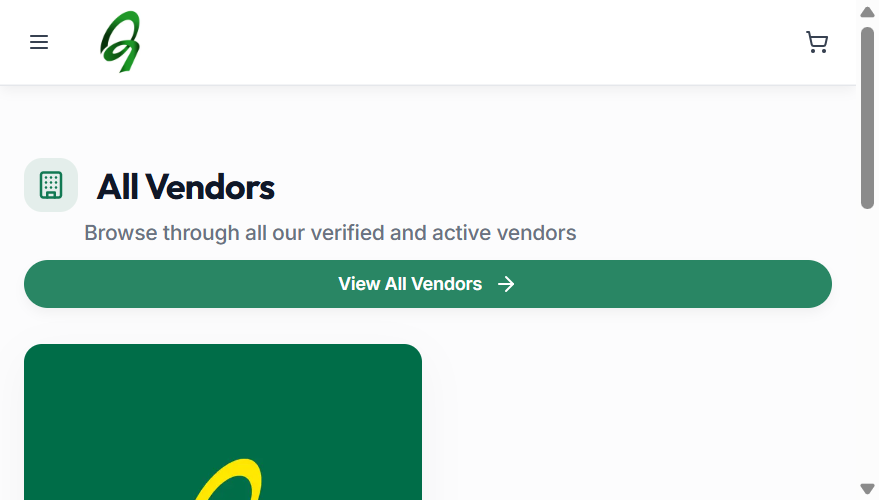
Select Vendors from the website navigation to open the Vendors page. The page is titled All Vendors and provides access to verified and active vendors available on Abay Mart.
8.2 Selecting a Vendor
The Vendors page displays vendor cards containing information about available vendors; for example, Abay Mart is displayed with an Official Partner badge. Select a vendor to open its store.
8.3 Visiting a Vendor Store
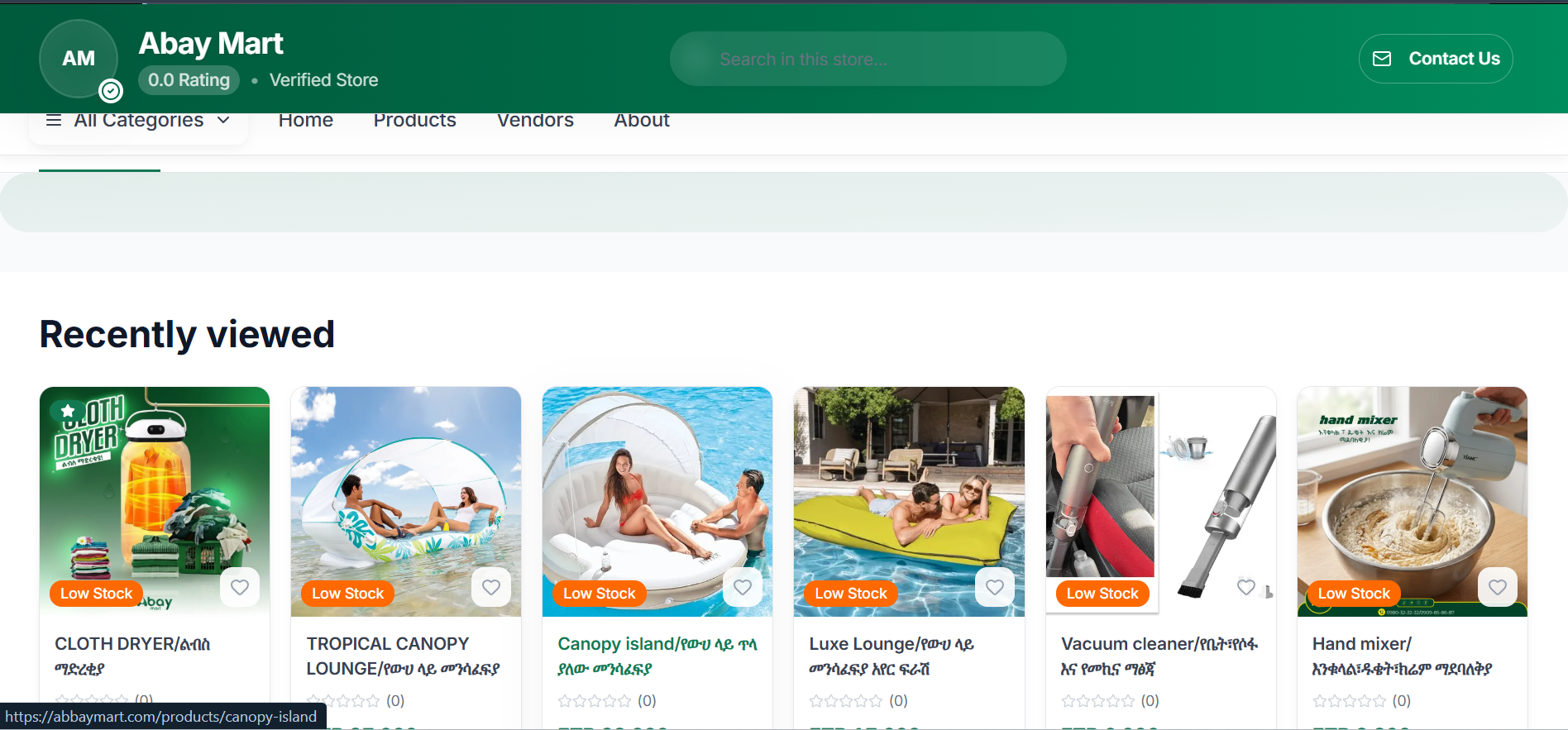
After opening a vendor’s store, you can view the products offered by that vendor. The product page also provides vendor information and a Visit store option in the Sold By panel, letting you move directly from a product to the vendor’s store (see Product Details › 4.8).
The Vendors section is useful when you want to explore products from a particular seller rather than searching for individual products.