Product Details
AbayMart Website
4.1 Product Images
The product page displays the available product images. Select the available thumbnails to view different images of the product.
To see an image in full screen, select the image or the expand button in its top-right corner. In full screen you can:
- Swipe, use the arrow buttons or press ← and → to move between images and videos.
- Click or tap an image to zoom in, and pinch to zoom on a phone.
- Select a thumbnail at the bottom to jump to that image.
- Press Esc, select ✕ or use your phone’s Back button to close it.
4.2 Product Information
The product page displays the product name, price, reviews, and number of items sold. Prices are shown in ETB (for example, “ETB 38,000.00”).
4.3 Description and Specifications
Use the Description and Specifications tabs to view the details provided by the vendor, such as size, weight limit, included items, and intended use. Other tabs on the product page include Reviews, Vendor, Similar Products, and More from Vendor.
4.4 Reviews
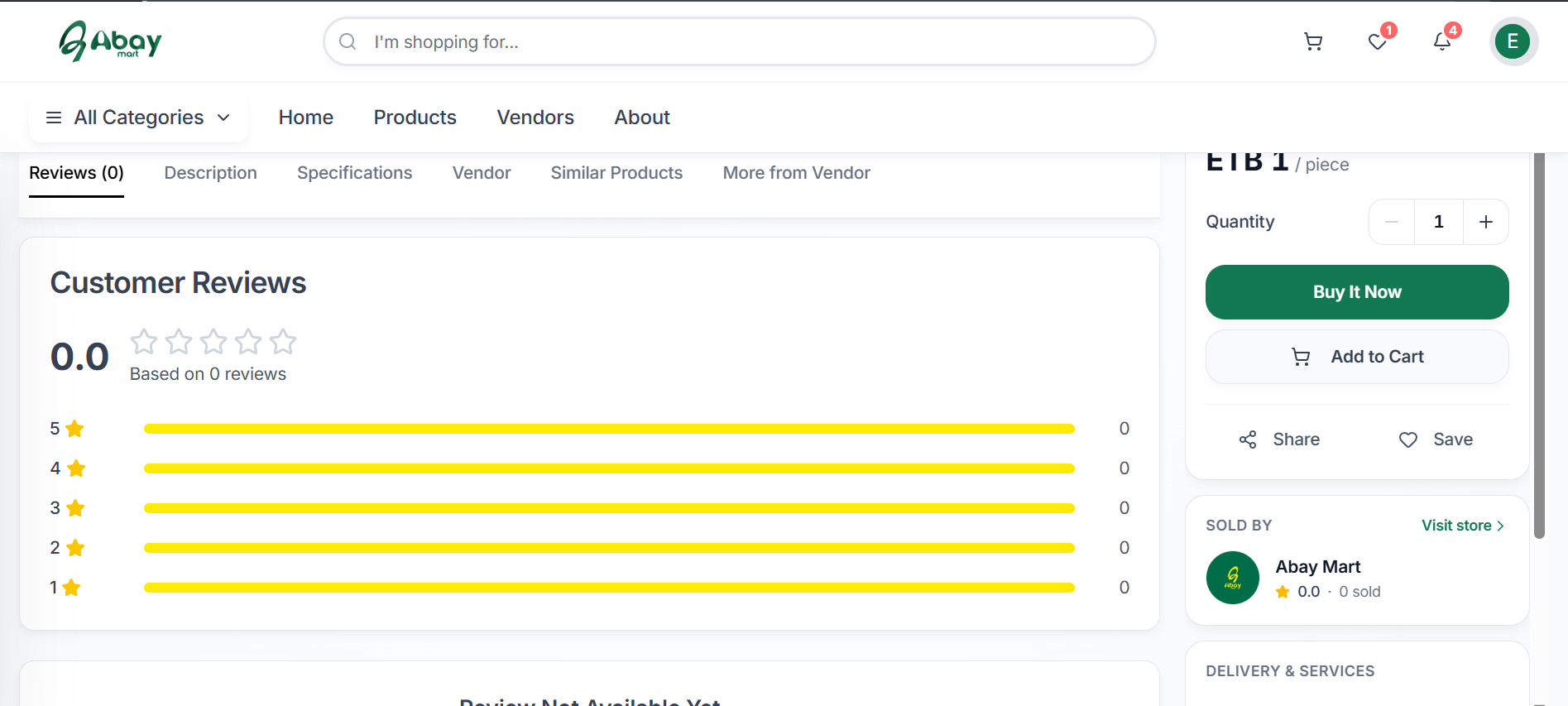
The Reviews tab shows Customer Reviews with the average rating and the number of reviews for each star rating. Reviews can be filtered according to the available star ratings. When a product has no reviews, the page displays a message indicating that there are no reviews yet and offers an option to be the first customer to review the product.
4.5 Vendor Information
The Sold By panel identifies the vendor selling the product, with its rating and number of items sold. Select Visit store to view the vendor’s store and other products offered by the vendor.
The panel may also show:
- Verified supplier – AbayMart has checked this business.
- Years on AbayMart and the year the business was founded.
- Replies within … – how quickly the vendor usually answers messages and inquiries.
4.6 Similar and Related Products
The page may display Similar Products and More from Vendor sections. If similar products are unavailable, the page indicates that no similar products are currently available.
4.7 Delivery and Customer Protection
The Delivery & Services panel provides delivery and service information, including:
- Standard Delivery
- Return & Refund Policy
- Buyer Protection
- Secure checkout systems
Review these details before completing a purchase.
4.8 Purchasing Options
Select the required quantity using the Quantity selector (− and +). The page provides two main purchasing options:
- Add to Cart – adds the product to the shopping cart so you can continue shopping.
- Buy It Now – lets you proceed directly toward purchasing the product.
You can also use the Share and Save options on the product page.
Related: Shopping Cart; Checkout & Orders.
4.9 Volume Prices
Some products cost less per unit when you buy more. These products show a row of prices with the quantity each price applies to, for example:
- ETB 78.59 for 500–2,999 square feet
- ETB 56.66 for 3,000–24,999 square feet
- ETB 51.17 for 25,000 square feet or more
The price that applies to your quantity is highlighted. The quantity counts every color or size of that product in your cart together. Under the Quantity selector the page tells you how many more you need to reach the next price.
Volume prices are not combined with promotions. At checkout you automatically get whichever is cheaper: the volume price or the promotion.
4.10 Ordering Several Colors or Sizes at Once
For products with options such as Color and Thickness, select Select variations and quantity in the purchase panel.
- Select a color (or other first option). The number on each color shows how many you have chosen of it.
- Use − and + next to each size or thickness to set the quantity you want.
- Check the Subtotal at the bottom. It uses the volume price for your total quantity.
- Select Add to cart to add every chosen option at once.
Your choices stay in the panel if you close it, until you add them to the cart.
4.11 Inquiries, Customization and Lead Time
Select Send inquiry to ask the vendor for a quote. You can enter a quantity for each option, a target price, attachments, and tick any Customization options the vendor offers (for example, printing your logo). The vendor replies with a quotation that you can accept and pay for at checkout.
The Lead time table shows how many days the vendor needs to dispatch an order of each size.
4.12 Shipping to Be Negotiated
For some products, such as large or heavy items, the shipping fee and delivery date are agreed with the vendor. These products show “Shipping fee and delivery date to be negotiated” and offer Send inquiry and Chat now instead of Add to Cart and Buy It Now. The vendor includes shipping in the quotation.