Checkout & Orders
AbayMart Website
7.1 Proceeding to Checkout
From the Shopping Cart, select Proceed to Checkout. (If you selected Buy It Now on a product, the website takes you straight to checkout.) The Checkout page (“Complete your order”) provides the information required to complete the order. You must be signed in to check out.
7.2 Selecting a Shipping Method
- Go to the Checkout page.
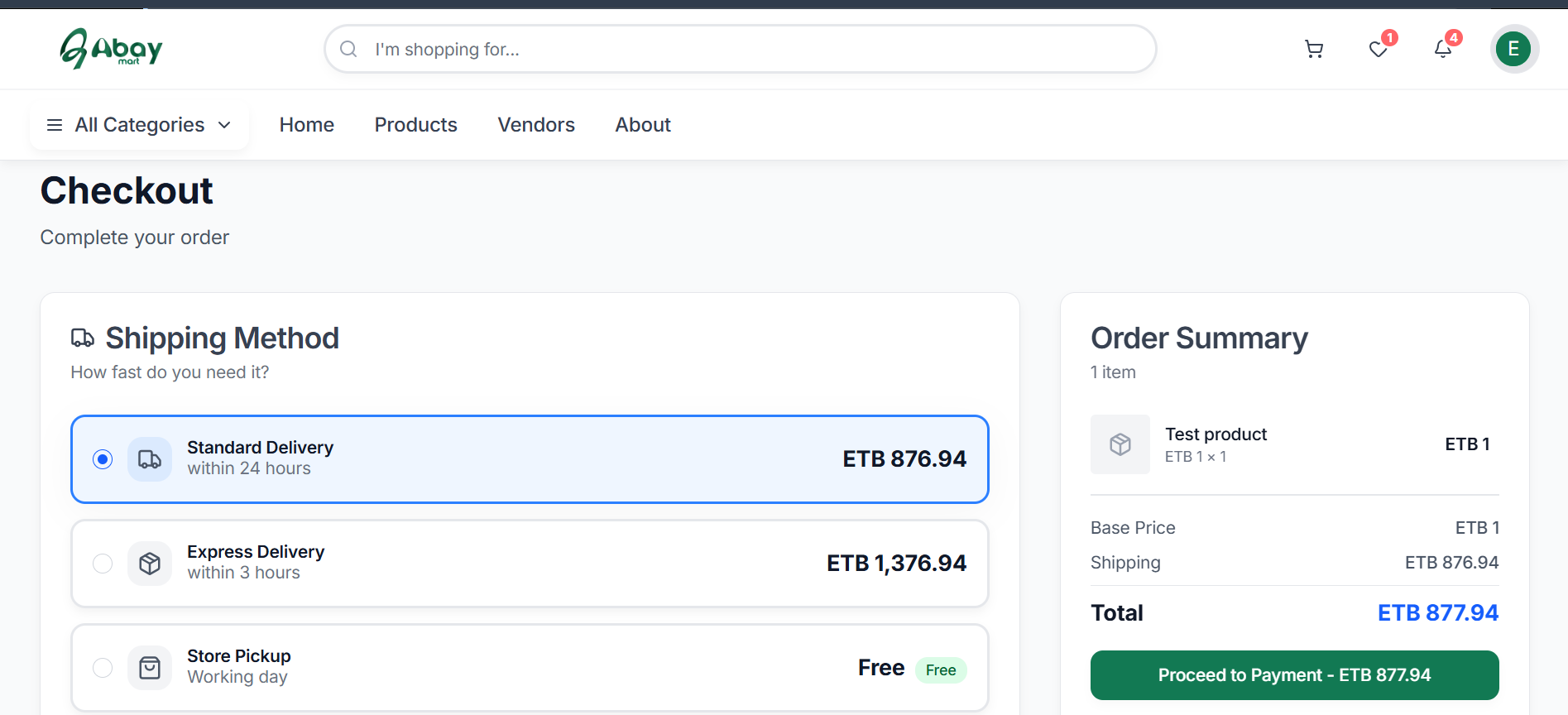
- Find the Shipping Method section (“How fast do you need it?”).
- Review the available delivery options.
- Select the shipping method that suits your preferred delivery time.
- Check the shipping cost displayed for the selected option.
- Continue to the Shipping Information section.
The shipping cost for each method is displayed next to the option. In the current checkout, the options shown are Standard Delivery (within 24 hours), Express Delivery (within 3 hours), and Store Pickup (working day, Free). Shipping options and costs may vary depending on the order and delivery location.
7.3 Adding Shipping Information
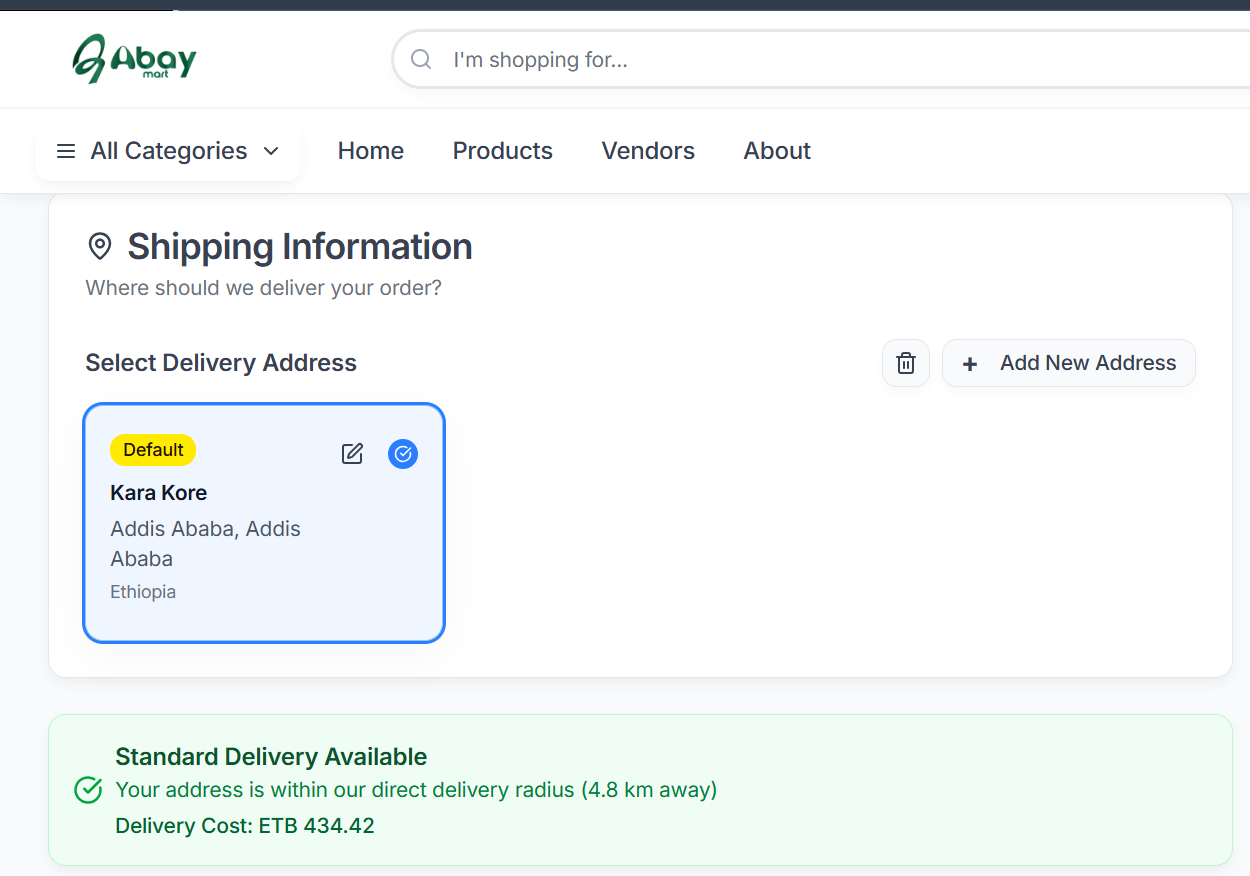
Provide the address where the order should be delivered.
- In the Shipping Information section, select + Add New Address.
- Use the map to select the delivery location.
- Move or adjust the map location to the exact place where the order should be delivered.
- Enter the required address information.
- Complete all required fields before continuing (for example, the Street field is required).
- Review the address and map location to make sure they are correct.
7.4 Adding Order Notes
The Checkout page provides an Order Notes (Optional) field. Use this field to provide special instructions that may be shared with the delivery person.
7.5 Reviewing the Order
Before proceeding to payment, review the Order Summary:
- Products
- Quantities
- Base price
- Shipping
- Total amount
7.6 Proceeding to Payment
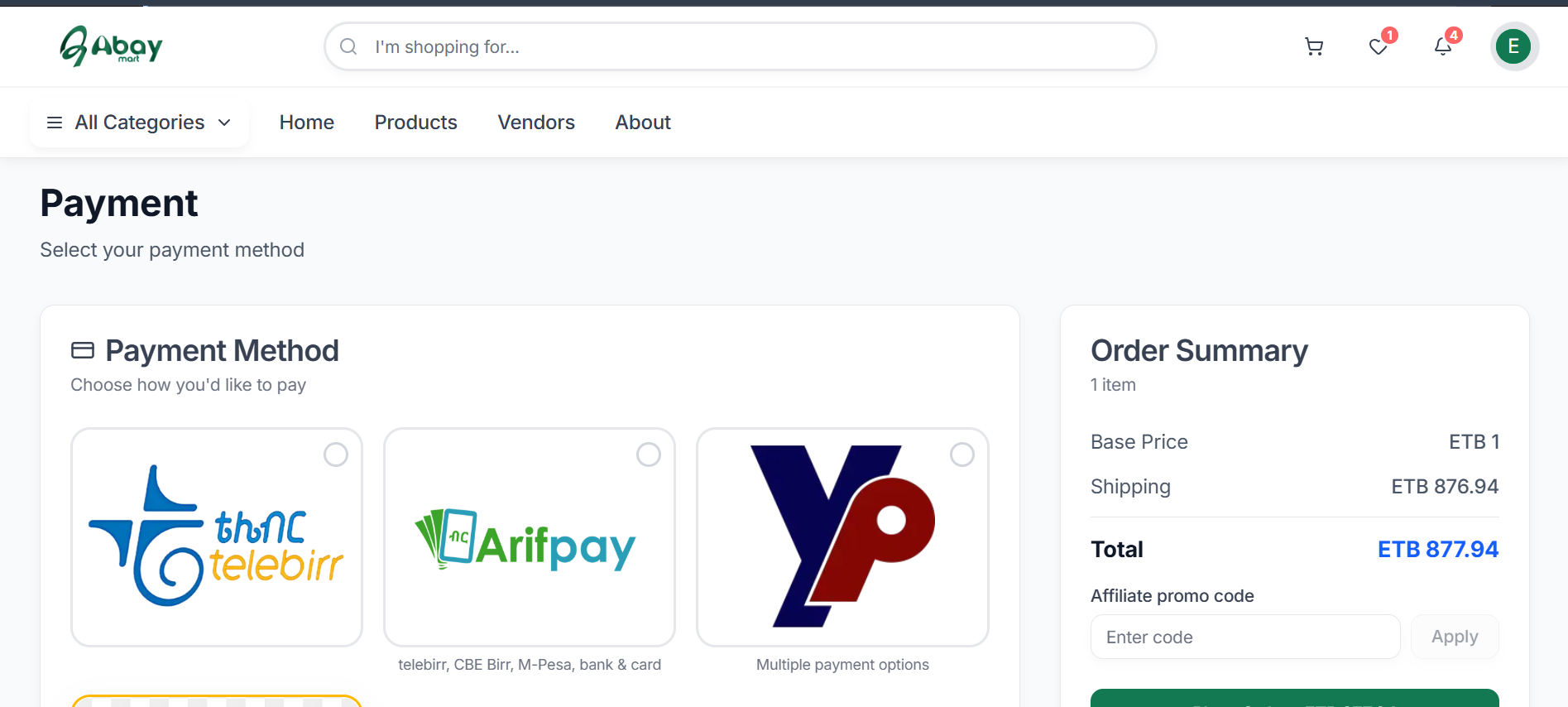
After entering the required shipping information and reviewing the order, select Proceed to Payment. The Payment page (“Select your payment method”) lets you choose an available payment method.
The payment options shown in the current Payment Method section include telebirr; Arifpay (telebirr, CBE Birr, M-Pesa, bank & card); and a provider card labelled “Multiple payment options”. Cash on Delivery is also available: when it is selected, the confirmation states that payment will be collected on delivery. Select the method you want to use and follow the on-screen instructions.
7.7 Final Payment Review
The Payment page displays the final order summary and the amount that will be charged, including shipping. Always check the final amount shown on the Payment page before placing an order.
If someone gave you an affiliate promo code, enter it in the Affiliate promo code field on this page and select Apply before placing the order. See the Affiliate User Guide › Using a Code at Checkout.
7.8 Pickup or Delivery and Placing the Order
Before completing the purchase, choose how you want to receive your order.
- Review the available order receiving options.
- Select whether you want to pick up the order from a shop (Store Pickup) or receive it through delivery.
- If you choose Pick Up, select the shop or pickup location where you want to collect your order.
- If you choose Delivery, make sure the delivery address and shipping information are correct.
- Review the selected receiving option and any applicable charges.
- Review the final order amount.
- Select Place Order to complete the purchase.
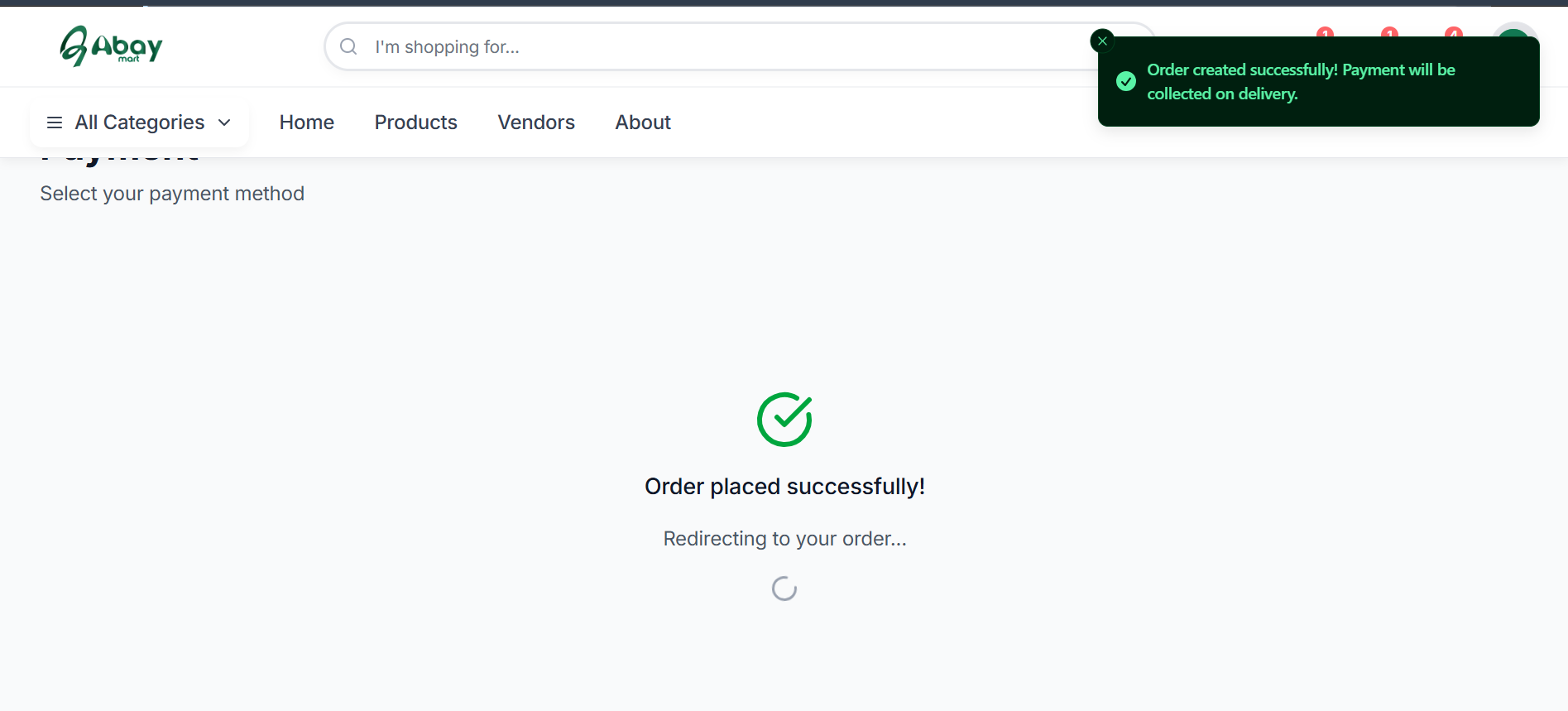
Confirm your preferred pickup location or delivery information before selecting Place Order. When the order is created, the website shows “Order placed successfully!” and redirects you to your order.
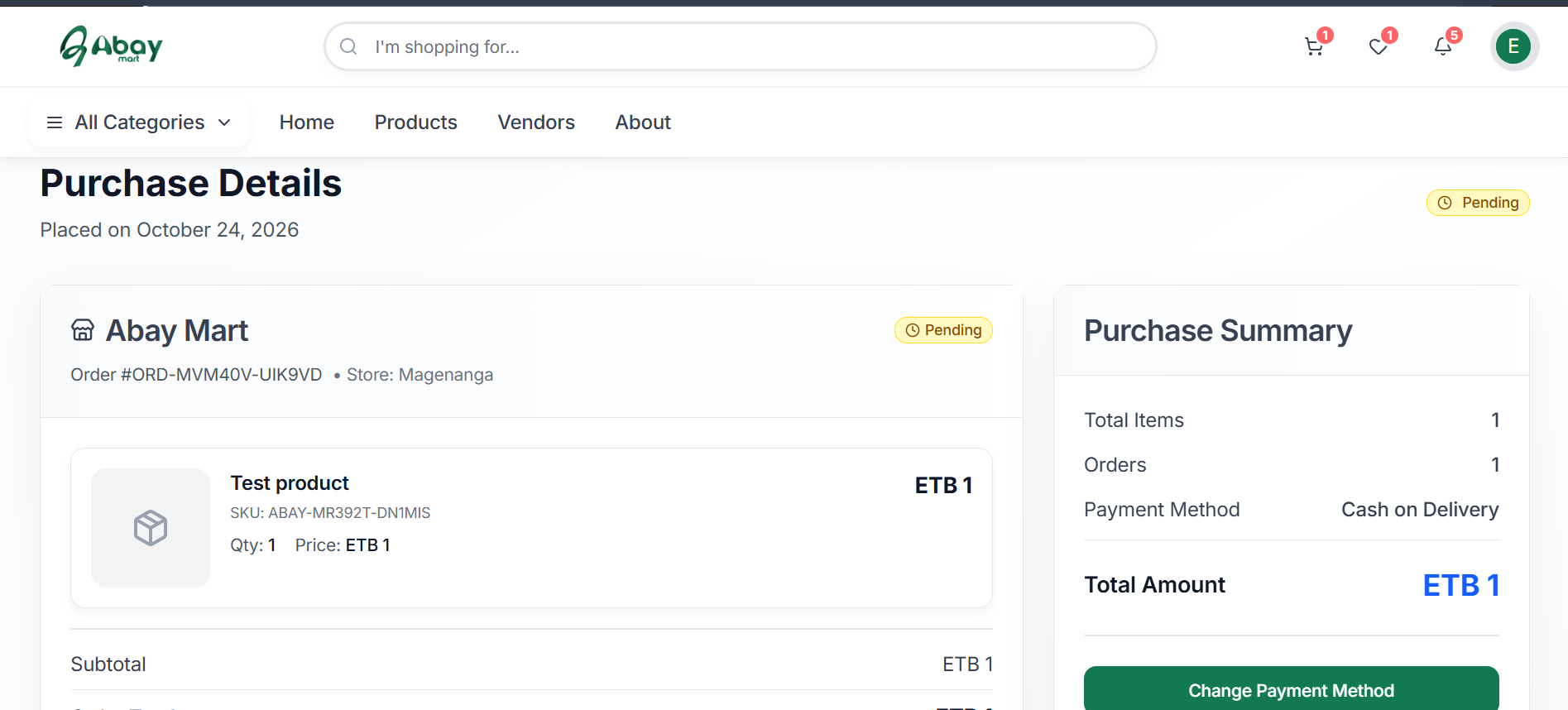
After Placing Your Order: Purchase Details
After the order is placed, the website opens the Purchase Details page for that order. It shows:
- The date the order was placed and its status (for example, Pending).
- The vendor, order number, and store.
- Each product with its SKU, quantity, and price, followed by the Subtotal and Order Total.
- A Purchase Summary with Total Items, Orders, Payment Method, and Total Amount.
A Change Payment Method button is shown in the Purchase Summary. Keep your order number for reference when you contact support or track the order.