Browsing & Finding Products
AbayMart Website
3.1 Understanding the Products Page
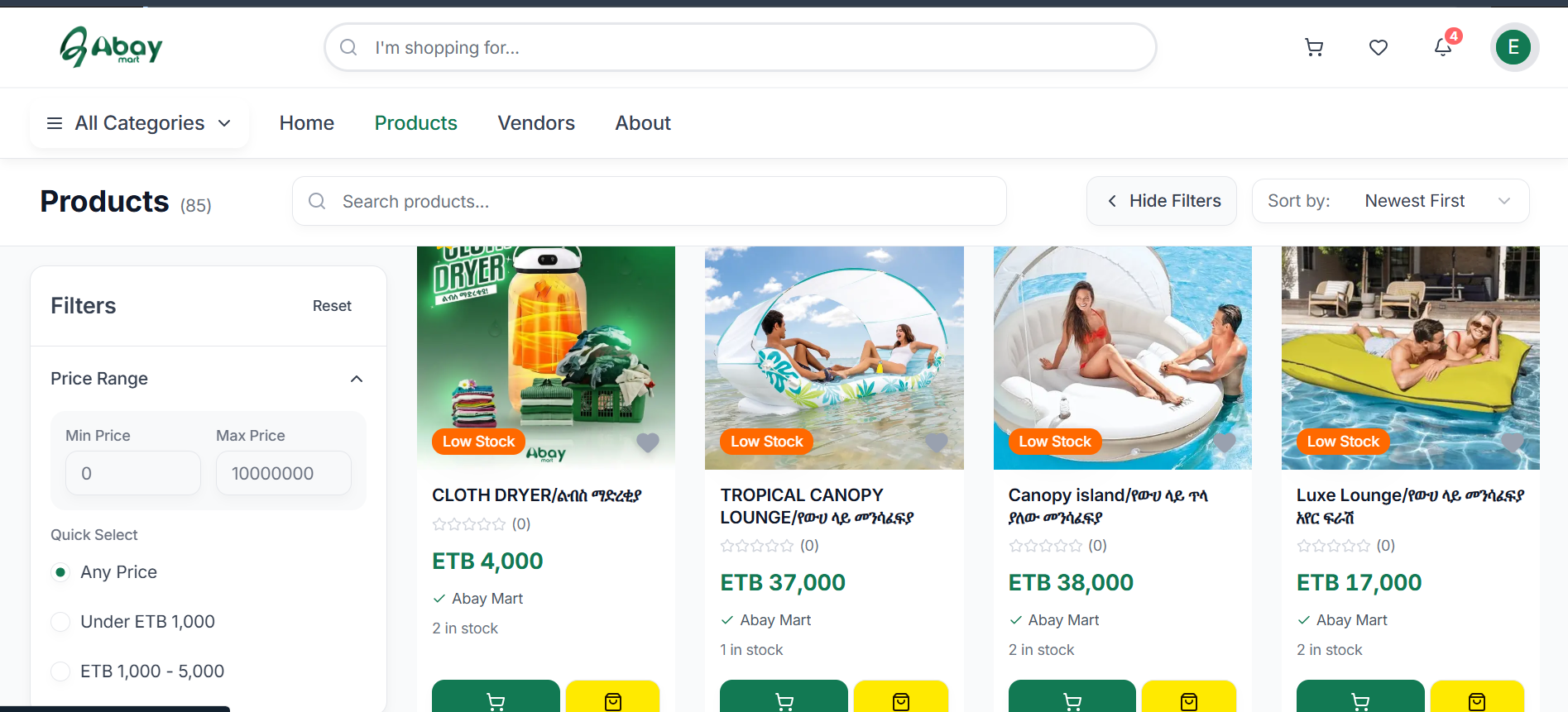
Select Products from the navigation menu to open the Products page. The total number of available products is displayed at the top of the page beside the Products title.
The Products page contains the following main areas:
- Search – Used to find a specific product.
- Filters – Used to narrow products according to different criteria (use Hide Filters / Show Filters to close or open the panel).
- Sort by – Used to change the order in which products are displayed.
- Categories – Used to browse products according to their category.
- Vendors – Used to filter products by vendor.
- Minimum Rating – Used to display products according to their customer rating.
- Other Filters – Includes options such as Featured Products, Top Rated, and Low Stock.
- Product Cards – Each product is displayed with its image, name, price, vendor, stock information, and shopping options.
3.2 Searching for a Product
If you already know what product you are looking for, use the search function instead of browsing the entire product list.
- Open the Products page.
- Select the Search field (“Search products…”).
- Enter the name or relevant words for the product you want to find.
- Review the products displayed in the search results.
- Select the product you are interested in to view its product page.
The Products page also provides a keyboard shortcut for quickly focusing on the search field.
3.3 Filtering Products
The filter panel helps you reduce the number of products displayed and find items that match your needs.
- Open the Products page.
- Open the Filters section.
- Choose the filter you want to apply (for example, Price Range).
- Select the appropriate option.
- Review the products that match the selected criteria.
- Apply additional filters if needed.
- To remove the selected filters and return to the full product list, select Reset.
The Price Range filter lets you enter a Min Price and Max Price, or choose a Quick Select option such as Any Price, Under ETB 1,000, or ETB 1,000 – 5,000.
3.4 Filtering by Category
Categories shown on the Products page include: Air Mattress, Air Furniture, Pool, Inflatables, Tools, Sport, Electronics, Travel, Home Appliance, Health and Beauty, Kids, and Construction.
- Open the Products page.
- Locate the Categories section in the filter panel.
- Select the category you are interested in.
- The product list is narrowed to products belonging to that category.
- Browse the displayed products and select a product to see more information.
3.5 Filtering by Vendor
- Open the Products page.
- Locate the Vendors section.
- Select the desired vendor.
- Review the products associated with that vendor.
The Products page currently includes Abay Mart as a vendor option in the filter list.
3.6 Filtering by Minimum Rating
- Open the Products page.
- Locate Minimum Rating.
- Select the minimum rating you want.
- Review the products that meet the selected rating requirement.
3.7 Sorting Products
The Products page opens with Newest First as the displayed sorting option.
- Open the Sort by menu.
- Select the preferred sorting option.
- The product list is rearranged according to the selected option.
3.8 Understanding a Product Card
Each product in the list appears as a product card. Depending on the product, the card may show:
- Product image
- Product name
- Customer rating
- Low Stock notification
- Price in ETB
- Vendor name
- Number of items currently in stock
- Add to Cart button (green, cart icon)
- Buy Now button (yellow, bag icon)
3.9 Understanding Stock Information
Some products display a Low Stock label. This indicates that the available quantity is limited. The product card may also show the exact quantity currently available, such as 1 in stock or 2 in stock.
Check the stock information before purchasing, especially when a product is marked Low Stock.
3.10 Adding a Product to the Cart
Use Add to Cart when you want to purchase a product later or together with other products.
- Find the desired product.
- Review its name, price, and stock information.
- Select Add to Cart.
- Continue browsing if you want to add more products.
- Open the Cart when you are ready to review the selected products.
The Add to Cart option is available directly from the product cards.
3.11 Buying a Product Directly
- Find the product you want.
- Check the product name, price, and available stock.
- Select Buy Now.
- Continue with the purchasing process displayed by the website.
The Buy Now button is displayed alongside Add to Cart on product cards.
3.12 Opening a Product
Open a product’s individual page when you want more information before deciding whether to purchase it.
- Go to the Products page.
- Find the product you are interested in.
- Select the product name or product image.
- The individual product page opens.
- Review the available product information before purchasing.