← Back to guidesHelp article
Help Center/AbayMart Application/Wishlist

Wishlist

AbayMart Application

9. Wishlist

Open Wishlist from the bottom navigation and review saved items. Tap an item to revisit its current product page; prices and stock may have changed since saving. Use Add To Cart if shown to purchase, or the heart/remove control to delete it from the list. If no items appear, sign in to the account used when saving them.
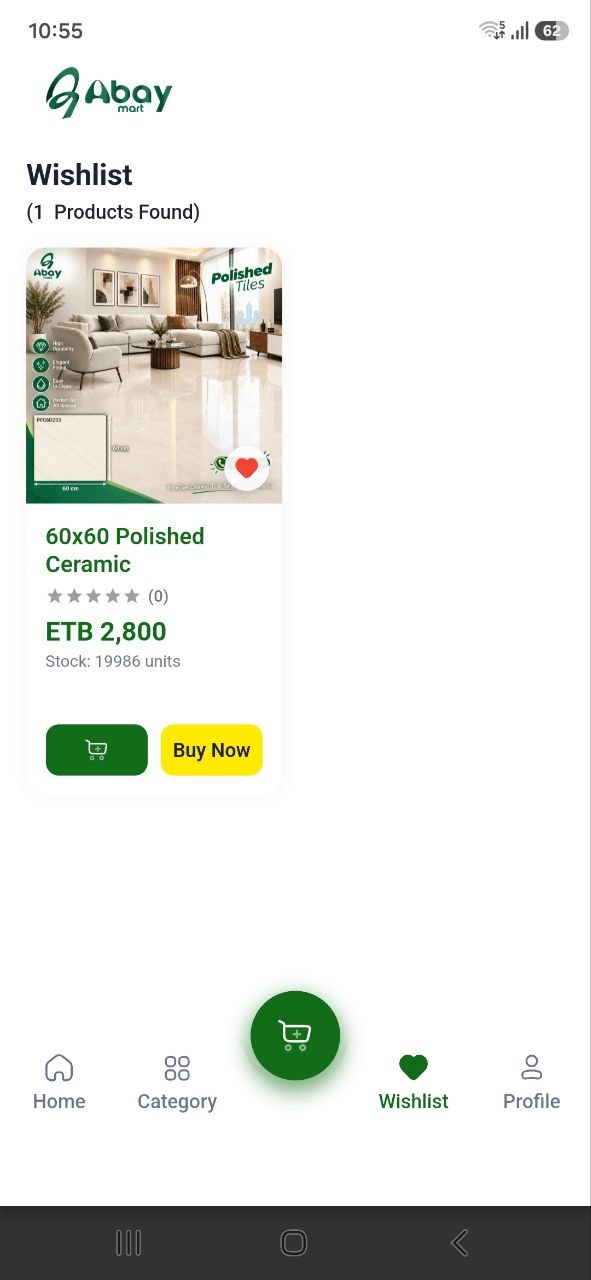
Abay Mart app Wishlist screen, “(1 Products Found)”, showing a saved product card for 60x60 Polished Ceramic with a filled red heart, ETB 2,800, stock count, a green cart button and a yellow Buy Now button. Wishlist is selected in the bottom navigation.
App Wishlist (Android). Highlighted: a saved product and the Wishlist tab in the bottom navigation.