Sign In & Sign Up
AbayMart Application
2.3 Sign In
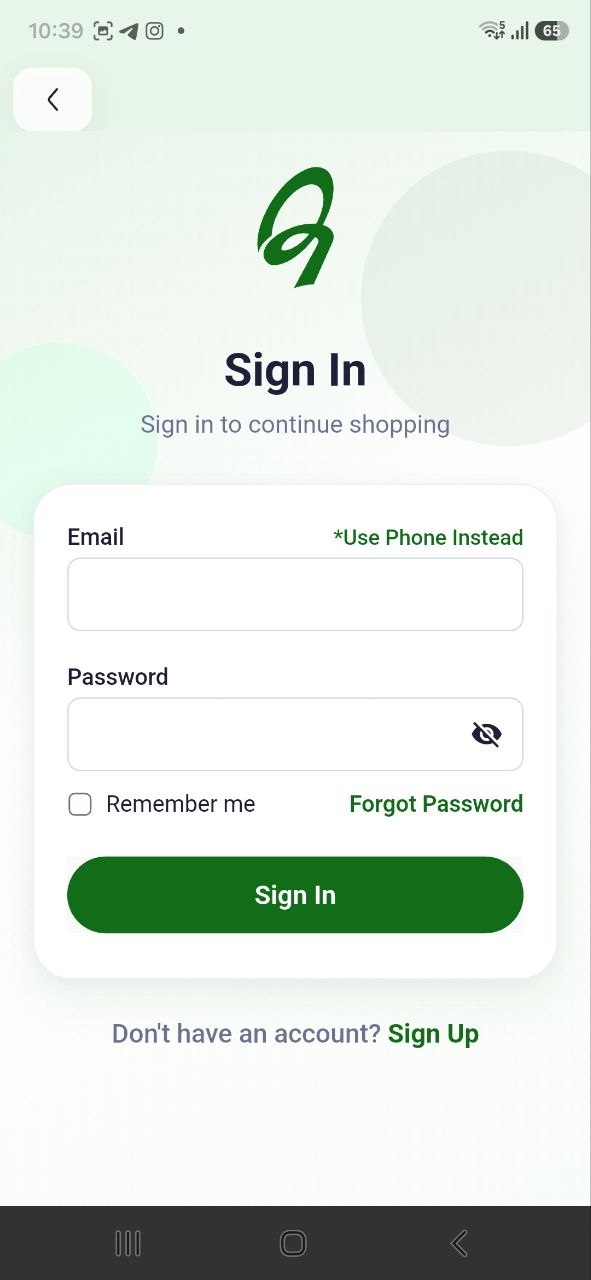
Use the app’s Sign In screen. The documented interface offers a registered email field, a Use Phone Instead option, a password field, optional Remember Me, and Sign In. Enter the email or phone number already associated with the account and its password, then submit. A successful sign-in should return you to the app with account features available. If credentials are rejected, check the selected email/phone mode and spelling; use Forgot Password if shown. Never share a password or verification code. These labels come from the existing app guide and should be rechecked against the installed version.
2.4 Sign Up
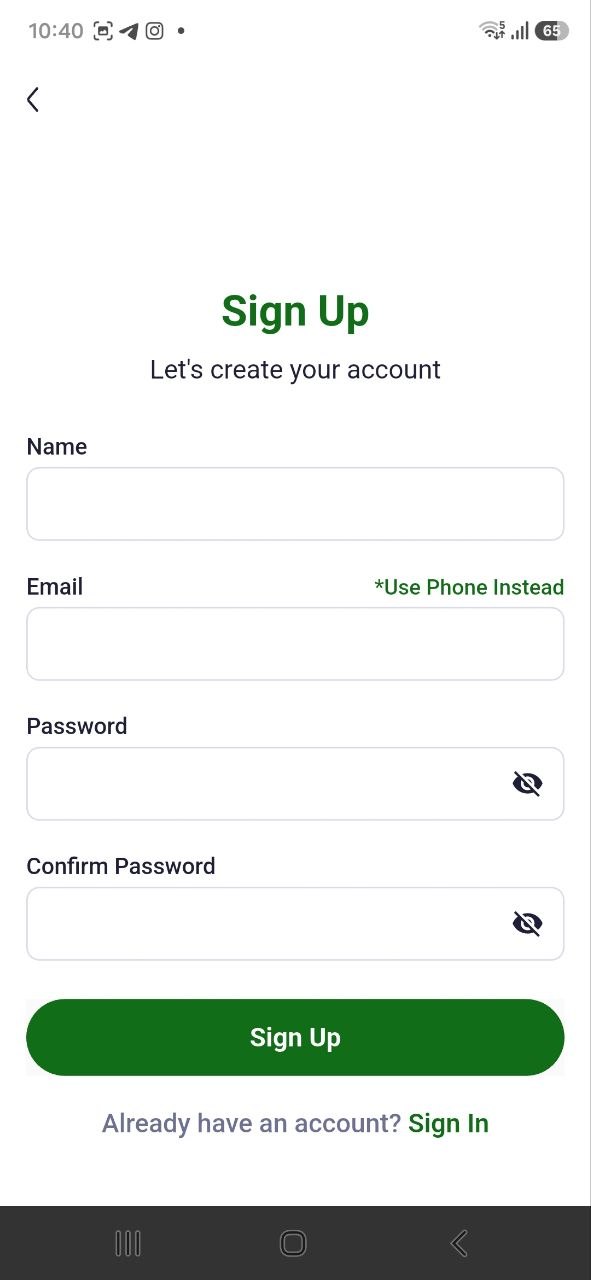
- From Sign In, choose Sign Up if you need a new account.
- Complete the fields the app marks as required, including registration/contact details when requested, and create a password that meets the displayed rules.
- Review the details and submit once. Complete any verification step only if the app requests it.
The exact required fields, verification method, and password rules depend on the current app release and were not independently confirmed. If registration fails, correct the field identified by the app or contact official support; do not submit repeated duplicate registrations.
2.5 Password Recovery
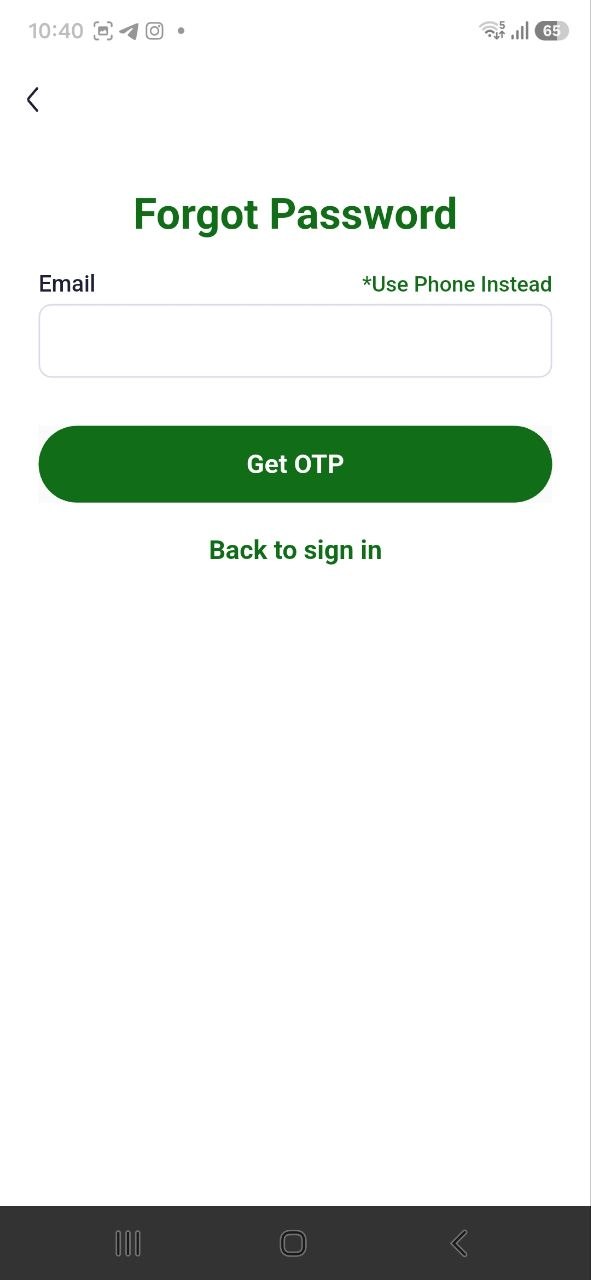
From Sign In, choose Forgot Password and follow the recovery process shown. Enter only the account identifier requested, check the official email/SMS channel for instructions, then set a new password that meets the app’s displayed rules. Return to Sign In and use the new password. If no recovery message arrives, verify the account identifier and check junk messages; contact support without sending your password or one-time code. Recovery timing and exact fields are not confirmed.