Product Details
AbayMart Application
5.3 Price & Availability
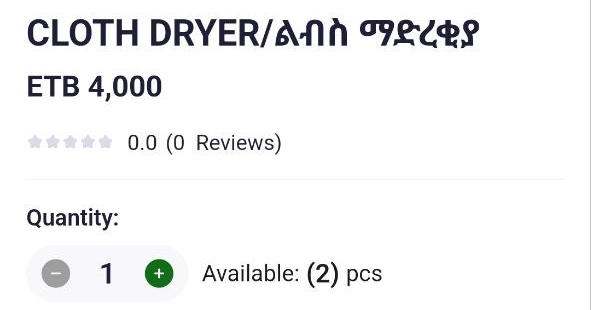
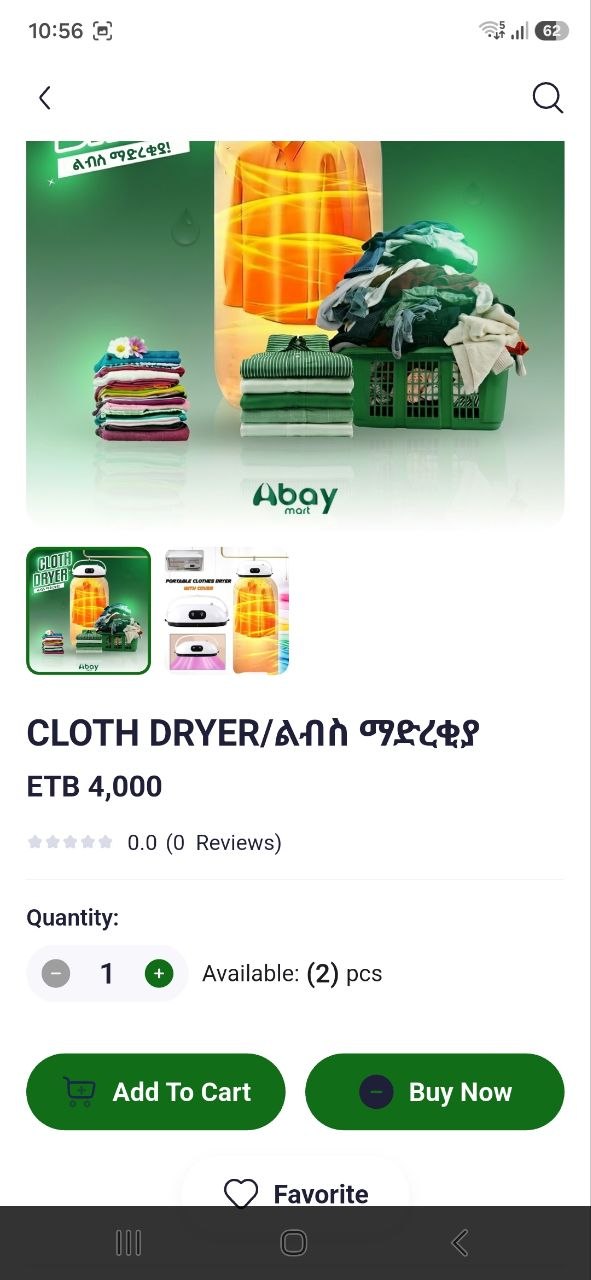
Open a product card and review the displayed name, price, and availability before adding it to the cart. Inventory can change; recheck it in the cart or checkout. If the app does not show availability clearly, do not assume an item is in stock—choose another listing or ask support.
5.4–5.5 Quantity & Cart
- On the product detail screen, review the listing and use + or − to choose a quantity if those controls are present.
- Select Add To Cart and wait for the app’s confirmation or cart update.
- Open Cart from the bottom navigation and verify the correct product and quantity are listed.
If the cart does not change, check connectivity and stock, then retry once. Button capitalization and layout may vary by app version. Related: Shopping Cart; Checkout & Order Process.
5.6 Wishlist
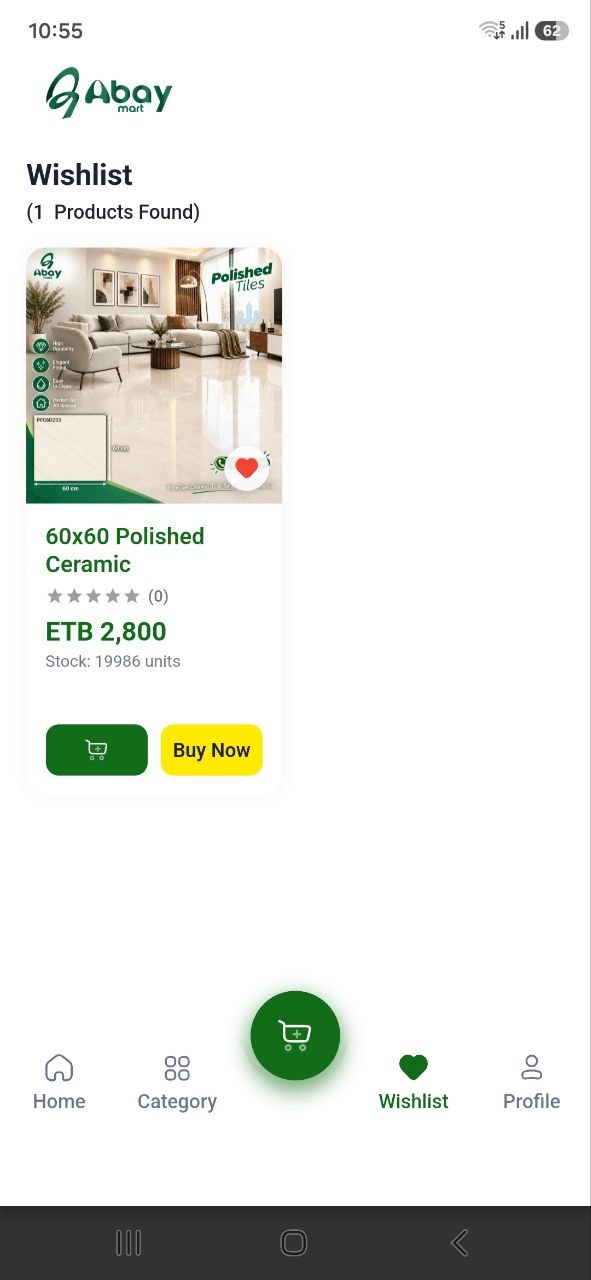
Tap the Heart control on a product to save it if the app offers it. Open Wishlist from the bottom navigation to check that the product appears. Tap the heart again or use the removal option shown to unsave it. A sign-in prompt may appear; follow the app prompt if you want saved items linked to your account.