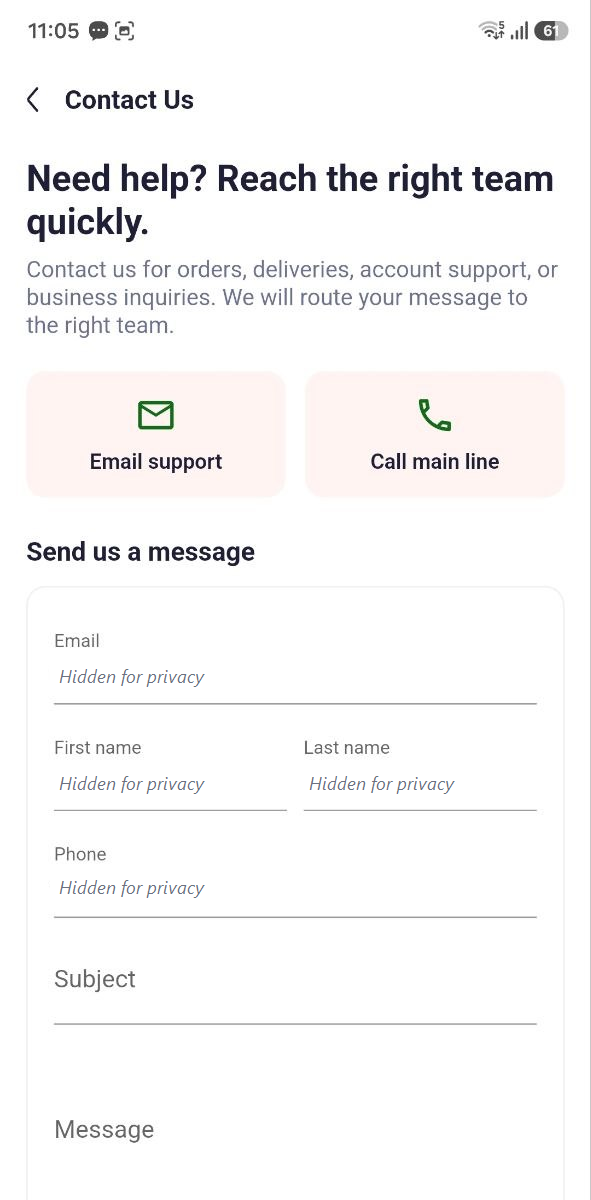
Help & Support
AbayMart Application
11.1 Notifications
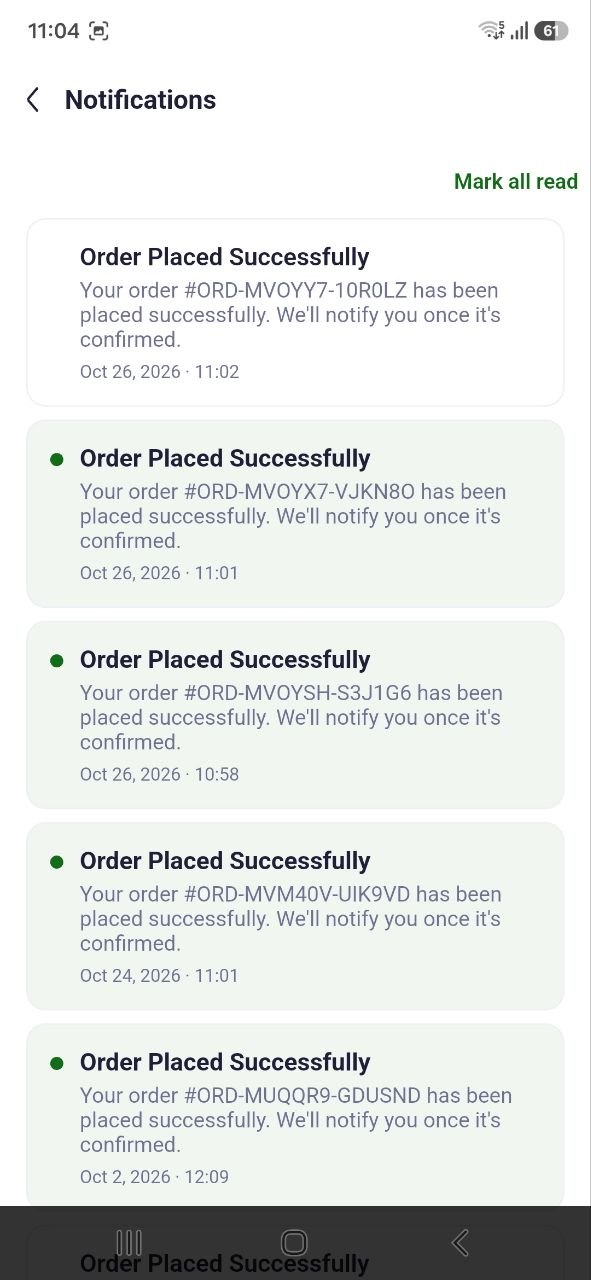
Open Notifications if the app exposes it to review platform messages and any order-related updates. A notification is informational; check the order’s current status in Profile → Orders before acting. Notification availability and delivery timing may depend on app settings and device permissions.
11.2–11.4 Support & Policies
Open Contact Us from the app if available to find the supported contact path. Include a concise issue description and relevant order reference, but never send passwords, payment credentials, or one-time codes. Review Terms & Conditions and Privacy Policy from Profile if those links are provided. If the app screen differs, use Help Center/contact details on the official website. Related: Orders; Account & Settings.