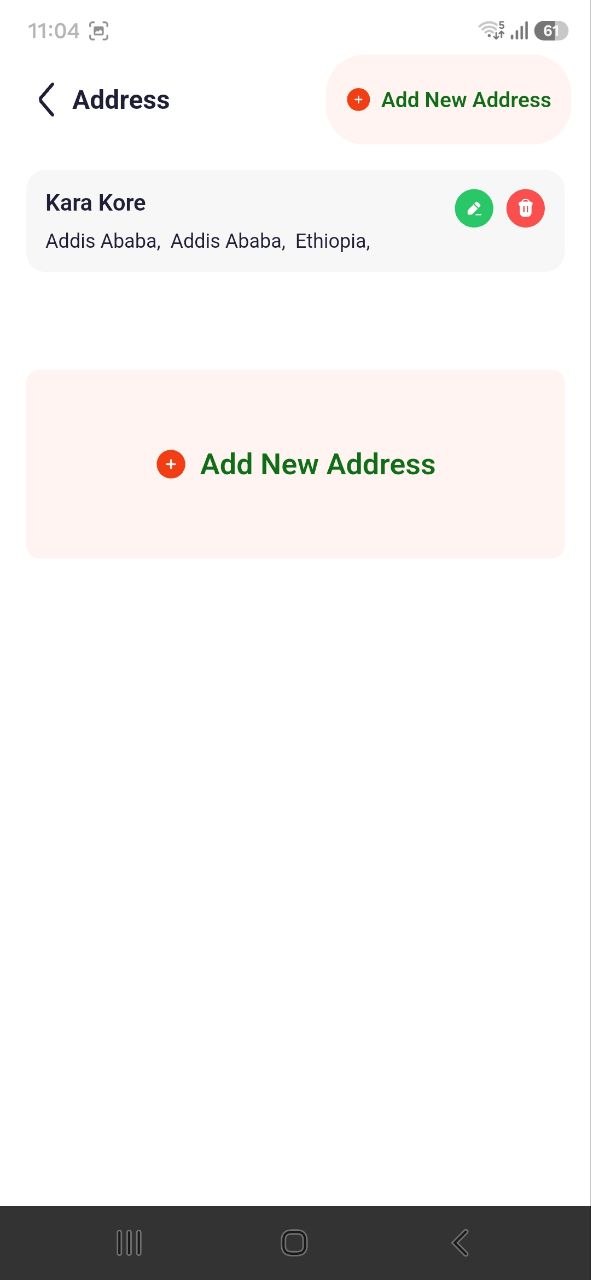
Account & Settings
AbayMart Application
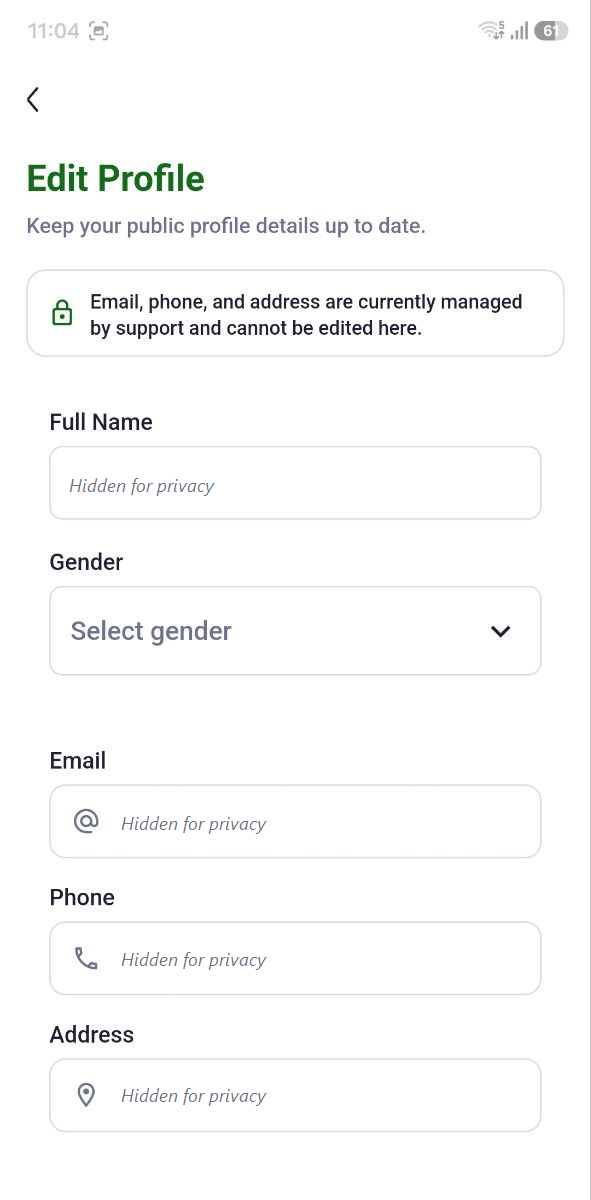
10.2 Editing Profile
Open Profile and choose Edit Profile if available. Update the fields you intend to change, review them for accuracy, and use the screen’s save/update action. Reopen the profile to confirm the change. Exact fields can vary. Avoid changing account identity details unless you can complete any requested verification.
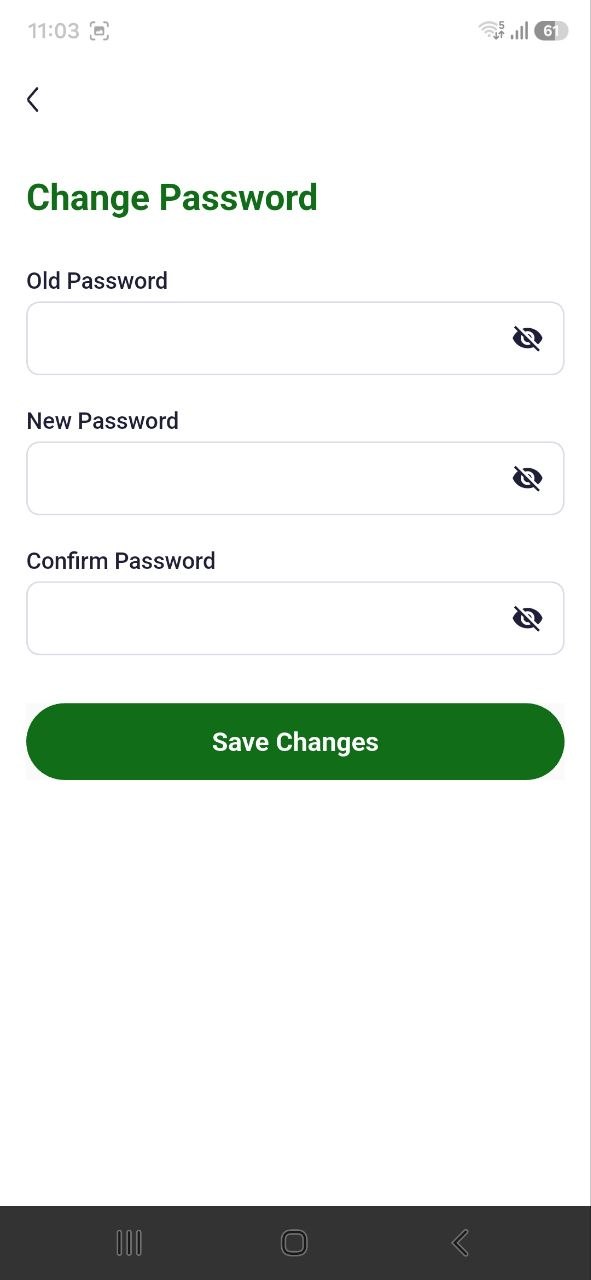
10.3 Changing Password
If the signed-in Profile screen offers Change Password, open it and follow the displayed fields and password requirements. Use a unique new password, submit once, and verify the app confirms the change. If you do not know the current password or the option is unavailable, use the official recovery flow instead. Never share either password.
10.4 Managing Addresses
If Profile provides address management, open it to add or edit an address. Enter only the information requested, save, then confirm the intended address is selected at checkout. Address labels and primary-address features may differ by app version; verify the current UI. Recheck the delivery address on each order before confirming.