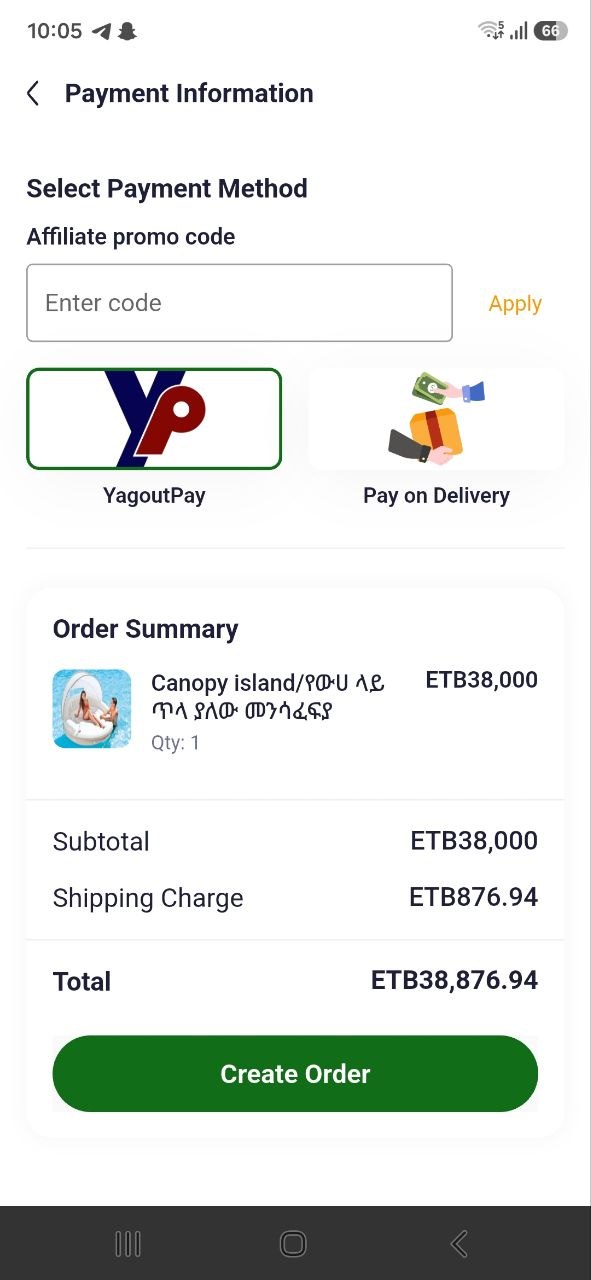
Using a Code at Checkout
Affiliate User Guide
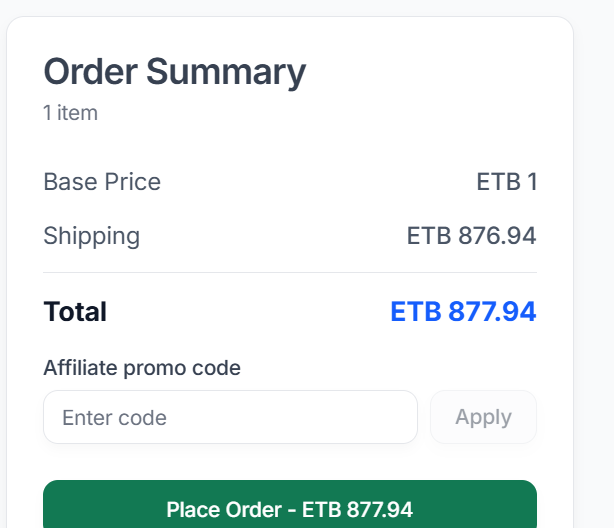
2.7 Using an Affiliate Promo Code During Website Checkout
- Add the desired products to the shopping cart.
- Proceed to Checkout and choose a shipping method.
- On the Payment page, find the Affiliate promo code field in the Order Summary.
- Enter the code provided by the affiliate.
- Select Apply (the button beside the field) to validate the code.
- Complete payment using the available payment method and select Place Order.
- If the code is valid and active, the order is attributed to the affiliate and the commission is recorded as PENDING.
Note: A promo code can store a benefit such as percent off or free delivery, but checkout does not currently apply that benefit to the price. Do not promise customers a discount for using a code.
3.5 Applying a Promo Code During Mobile Checkout
- Add products to the cart.
- Continue to the Shipping Information screen.
- Find Affiliate Promo Code.
- Enter the promo code and select Validate.
- Continue to payment and place the order.